[[TOC]]
Turris Omnia RTROM01-2G & RTROM01-CE
Hardware Information
Wi-Fi Extender Reference Targets
Serial Port Access
https://doc.turris.cz/doc/en/troubleshooting/serial_link#turris_omnia
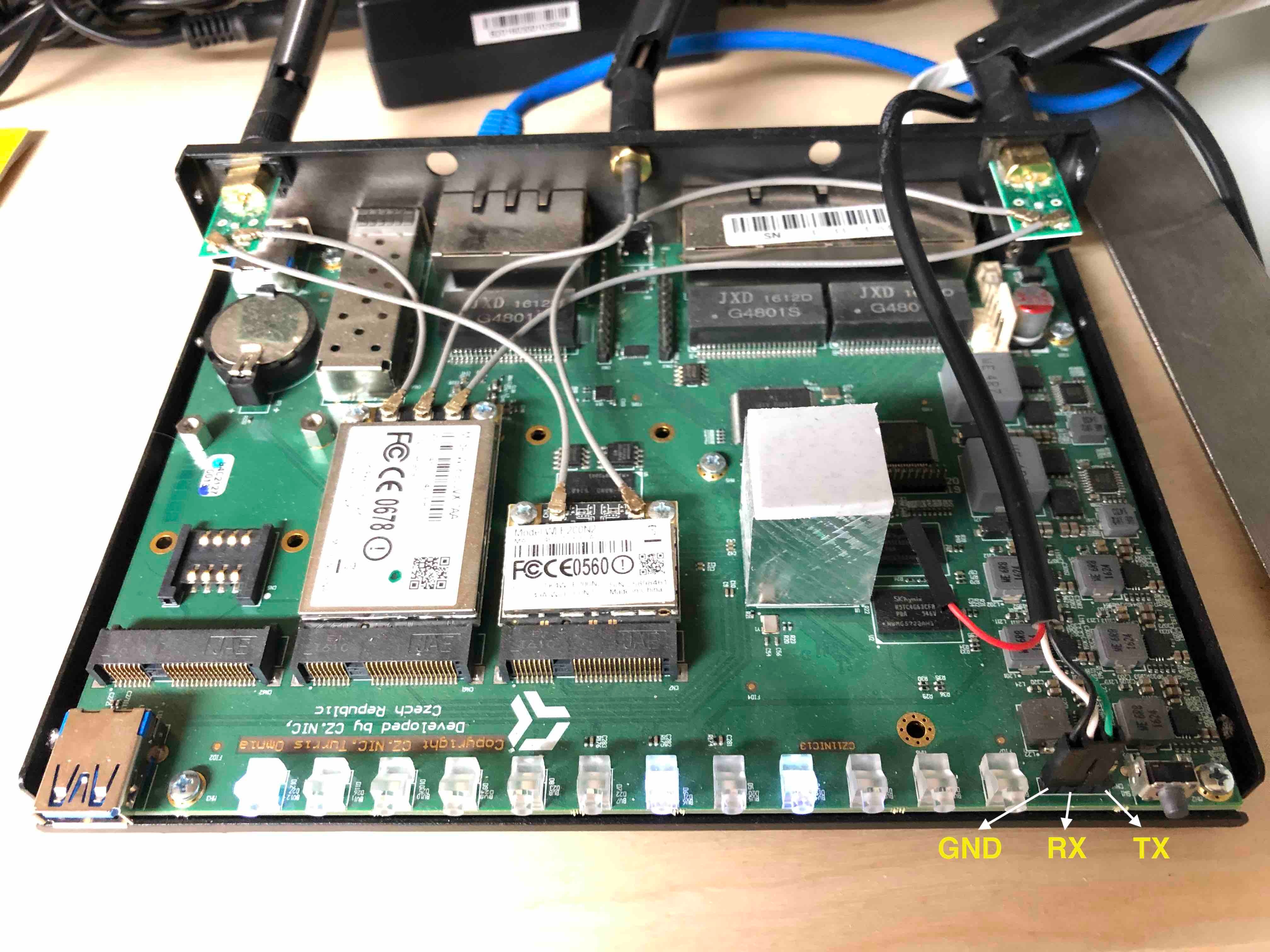
Caution: Do not connect Vcc!
Setting up Bootloader:
Setting default U-boot environment
In serial console, press "Enter" key to get into u-boot prompt
Run following u-boot commands to set default U-boot environment
env default -a
saveenv
reset
Flashing
The Omnia ships with TurrisOS preinstalled. This is an OpenWrt fork with the older Linux 4.4 kernel. It uses btrfs to manage the eMMC flash.
We do not use it in this mode. The RDK-B port is closer to the mainline OpenWrt port, which uses Linux 4.14, and a traditional partition table.
Reflashing procedure from TurrisOS:
-
upgrade through a "medkit" image through the use of a USB stick and pressing the reset button.
-
https://openwrt.org/toh/turris_cz.nic/turris_cz.nic_omnia is not entirely accurate, and cannot complete without access to the serial port, due to an error in the factory initialisation of the U-boot environment. Updated procedure:
- Remove the casing. Connect a TTL serial interface, see "Serial Port Access" above.
- Format a USB flash drive as ext2.
- Download sysupgrade and medkit from http://downloads.openwrt.org/releases/18.06.2/targets/mvebu/cortexa9/ and copy both files to the root of the flash drive.
- Disconnect other USB devices from the Omnia and connect the flash drive to either USB port. (I have only verified this with the USB port at the front).
- Hold down the reset button (backside, bottom centre) and plug in the power cord. Wait until the fourth LED lights up (green), then release (before the 5th LED lights up).
- Wait approximately 2 minutes for the Turris Omnia to flash itself with the temporary image, during which LEDs will change multiple times.
- Either use the serial console, or connect a computer to a LAN port (LAN0 to LAN4) of the Turris Omnia with a DHCP client.
From a computer:
ssh root@192.168.1.1
Then, from the ssh session or a serial console:
mount /dev/sda1 /mnt
sysupgrade /mnt/openwrt-18.06.2-mvebu-cortexa9-turris-omnia-sysupgrade.img.gz
- Wait another minute for the final OpenWrt image to be flashed. The Turris Omnia will reboot itself and you can remove the flash drive.
Turris Omnia 2019 & 2020
Flashing with Medkit & Sysupgrade images
Perform following steps to flash New Turris Omnia with RDKB image.
- Connect a USB flash drive to PC that is running Linux. Create a partition in flash drive and format the partition with mkfs.ext2
- Copy both attached medkit image and sysupgrade.img image to USB flash drive.
- Disconnect other USB devices from the Turris Omnia and connect the flash drive to either USB port.
- Hold down the reset button (backside, bottom centre) and plug in the power cord. Wait until the fourth LED lights up (green), then release (before the 5th LED lights up).
- Wait approximately 2 minutes for the Turris Omnia to flash itself with the temporary image, during which LEDs will change multiple times.
Turris Omnia 2019 & 2020: Flashing Instruction
https://wiki.rdkcentral.com/pages/viewpage.action?pageId=114986660
Creating additional partitions.
Create partitions for additional rootfs and nvram. Then, reboot the system.
root@TurrisOmnia-GW:~# fdisk /dev/mmcblk0

Welcome to fdisk (util-linux 2.28.1).
Changes will remain in memory only, until you decide to write them.
Be careful before using the write command.


Command (m for help): p
Disk /dev/mmcblk0: 7.3 GiB, 7818182656 bytes, 15269888 sectors
Units: sectors of 1 * 512 = 512 bytes
Sector size (logical/physical): 512 bytes / 512 bytes
I/O size (minimum/optimal): 512 bytes / 512 bytes
Disklabel type: dos
Disk identifier: 0xec7ceddc

Device         Boot Start    End Sectors   Size Id Type
/dev/mmcblk0p1 *     2048  34623   32576  15.9M  c W95 FAT32 (LBA)
/dev/mmcblk0p2      34816 755359  720544 351.8M 83 Linux

Command (m for help): n
Partition type
   p   primary (2 primary, 0 extended, 2 free)
   e   extended (container for logical partitions)
Select (default p):

Using default response p.
Partition number (3,4, default 3):
First sector (34624-15269887, default 755712):
Last sector, +sectors or +size{K,M,G,T,P} (755712-15269887, default 15269887): +512M

Created a new partition 3 of type 'Linux' and of size 512 MiB.

Command (m for help): n
Partition type
   p   primary (3 primary, 0 extended, 1 free)
   e   extended (container for logical partitions)
Select (default e):

Using default response e.
Selected partition 4
First sector (34624-15269887, default 1804288):
Last sector, +sectors or +size{K,M,G,T,P} (1804288-15269887, default 15269887):

Created a new partition 4 of type 'Extended' and of size 6.4 GiB.

Command (m for help): n
All primary partitions are in use.
Adding logical partition 5
First sector (1806336-15269887, default 1806336):
Last sector, +sectors or +size{K,M,G,T,P} (1806336-15269887, default 15269887): +1G

Created a new partition 5 of type 'Linux' and of size 1 GiB.

Command (m for help): p
Disk /dev/mmcblk0: 7.3 GiB, 7818182656 bytes, 15269888 sectors
Units: sectors of 1 * 512 = 512 bytes
Sector size (logical/physical): 512 bytes / 512 bytes
I/O size (minimum/optimal): 512 bytes / 512 bytes
Disklabel type: dos
Disk identifier: 0xec7ceddc

Device         Boot   Start      End  Sectors   Size Id Type
/dev/mmcblk0p1 *       2048    34623    32576  15.9M  c W95 FAT32 (LBA)
/dev/mmcblk0p2        34816   755359   720544 351.8M 83 Linux
/dev/mmcblk0p3       755712  1804287  1048576   512M 83 Linux
/dev/mmcblk0p4      1804288 15269887 13465600   6.4G  5 Extended
/dev/mmcblk0p5      1806336  2068479   262144   128M 83 Linux

Command (m for help): w
The partition table has been altered.
Calling ioctl() to re-read partition table.
Re-reading the partition table failed.: Device or resource busy

The kernel still uses the old table. The new table will be used at the next reboot or after you run partprobe(8) or kpartx(8).

root@TurrisOmnia-GW:~# reboot
Format newly created two partitions as ext2 partitions.
root@TurrisOmnia-GW:~# mkfs.ext2  /dev/mmcblk0p3
mke2fs 1.43 (17-May-2016)
Discarding device blocks: done
Creating filesystem with 131072 4k blocks and 32768 inodes
Filesystem UUID: c2d8887f-6e6b-4d9b-b57a-f3bc28374841
Superblock backups stored on blocks:
    32768, 98304

Allocating group tables: done
Writing inode tables: done
Writing superblocks and filesystem accounting information: done

root@TurrisOmnia-GW:~# mkfs.ext2  /dev/mmcblk0p5
mke2fs 1.43 (17-May-2016)
Discarding device blocks: done
Creating filesystem with 131072 1k blocks and 32768 inodes
Filesystem UUID: 2e4cee8d-f1d5-488a-99f9-5e3a233dcf4f
Superblock backups stored on blocks:
    8193, 24577, 40961, 57345, 73729

Allocating group tables: done
Writing inode tables: done
Writing superblocks and filesystem accounting information: done
Copy zImage, dtb and a rootfs tar file from yocto workspace to turris omnia(whose IP is 192.168.1.1). (in your PC)
$ scp <yocto_workspace>build-turris/tmp/deploy/images/turris/zImage root@192.168.1.1:/tmp
$ scp <yocto_workspace>build-turris/tmp/deploy/images/turris/{"zImage-",""}armada-385-turris-omnia.dtb root@192.168.1.1:/tmp/armada-385-turris-omnia.dtb
$ scp <yocto_workspace>build-turris/tmp/deploy/images/turris/rdkb-generic-broadband-image_default_<image-timestamp>.rootfs.tar.gz root@192.168.1.1:/tmp/
(in turris omnia)
root@OpenWrt:~# mount /dev/mmcblk0p3 /mnt
root@OpenWrt:~# mv /tmp/zImage /mnt
root@OpenWrt:~# mv /tmp/armada-385-turris-omnia.dtb /mnt
root@OpenWrt:~# umount /mnt
root@OpenWrt:~# mount /dev/mmcblk0p5 /mnt
root@OpenWrt:~# tar -xzf /tmp/rdkb-generic-broadband-image_default_<image-timestamp>.rootfs.tar.gz -C /mnt
root@OpenWrt:~# umount /mnt
root@OpenWrt:~# reboot
Press enter while turris omnia reboots to get u-boot prompt. Then type following u-boot commands for booting yocto based RDKB image instead of openwrt image.
setenv yocto_bootargs earlyprintk console=ttyS0,115200 root=/dev/mmcblk0p5 rootfstype=ext2 rw rootwait
setenv mmcboot run yocto_mmcload\; bootz 0x01000000 - 0x02000000
setenv yocto_mmcload setenv bootargs "$yocto_bootargs cfg80211.freg=$regdomain"\; ext2load mmc 0:3 0x01000000 zImage\; ext2load mmc 0:3 0x02000000 armada-385-turris-omnia.dtb
saveenv
reset